

CAD/BIM Tips & Tricks
9 CAD Tasks You Should Automate Immediately – If You Value Your Time
28 April 2026
We believe that as a CAD designer, your time should be spent designing, not repetitively clicking the same thing 400 times a day. But there’s a silent trap to which CAD users unknowingly fall prey: “It only takes a few seconds.”
The Quiet Cost of “Just a Few Clicks”
To be fair, that’s kind of true. Renaming a file, checking a layer, updating a title block … none of these take a long time individually or feel like a big deal, right? But zoom out and you start to see the bigger picture.
Those “few seconds” quietly turn into hours every week: time spent not designing, not solving problems, but managing repetition. And the worst part? Most of it is completely avoidable.
What’s quietly draining your time, and how could automation give it back?
If you’re using MicroStation®, AutoCAD®, or BricsCAD®, you’re already sitting on a huge opportunity to automate the busywork, especially with the tools available from Axiom.
Let’s look at nine CAD tasks that are quietly draining your time, and how automation could give it back.
1. Importing Excel and Word Data
The Problem
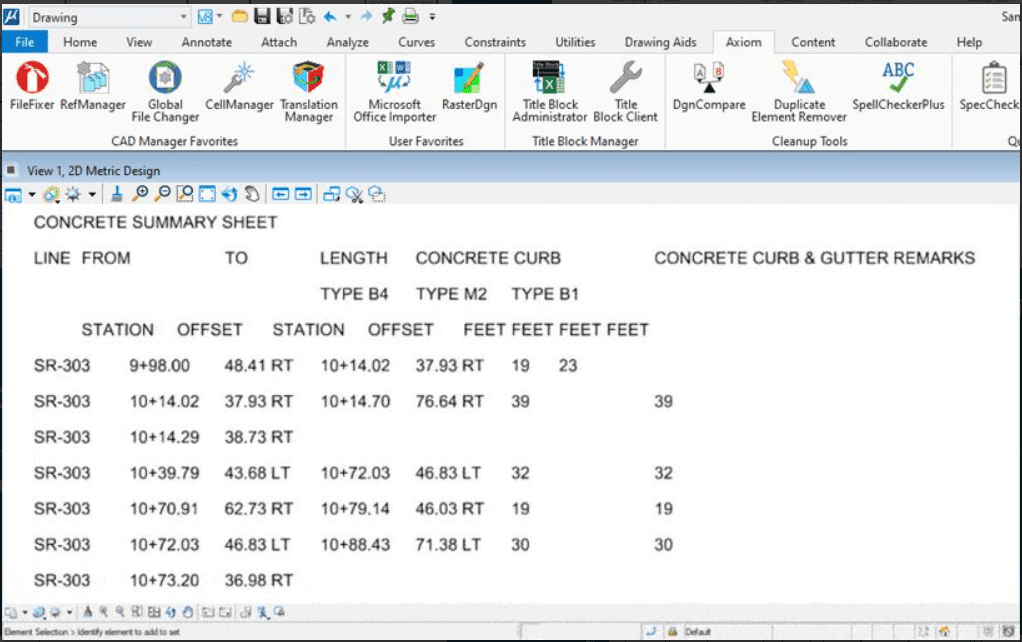
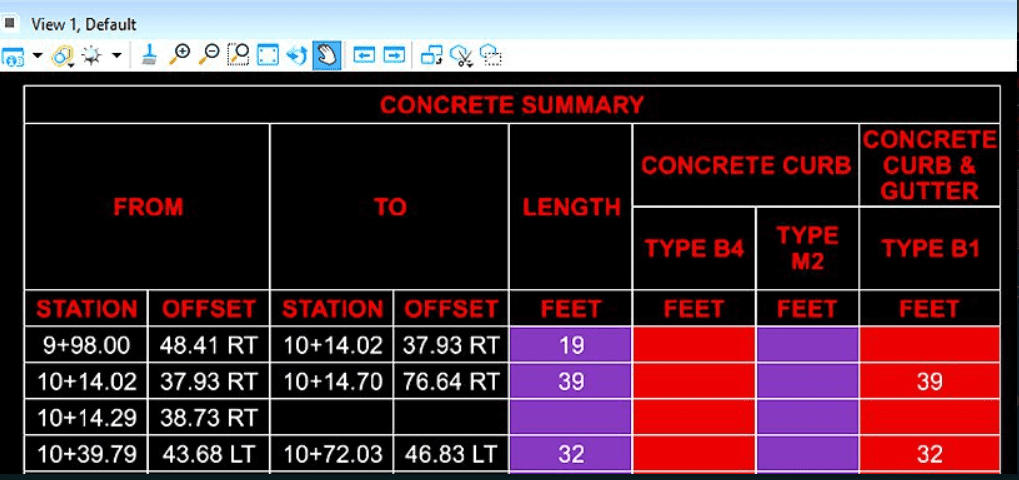
Using native MicroStation, AutoCAD, BricsCAD or Revit to import Excel™ (or Word™) data into your project files results in formatting that’s, well, lacking, at best. (We’re being polite.) Import a spreadsheet and the formatting breaks; updates don’t always happen automatically, and, for some reason, everyone pretends it’s normal. It’s a mess.
The Automation
Fast, easy Excel and Word imports with flawless formatting and auto-updates.
Microsoft Office Importer gives you clean imports of Excel and Word content, with formatting identical to the original document and the option of automatic updates. Available for MicroStation, AutoCAD, Revit and BricsCAD. This new normal is a game-changer.
Why It Matters
- Consistently work with clean, easy-to-read data.
- Easy updates mean accurate data.
- You never have to endure another reformatting marathon.
2. Fixing Broken or Corrupt Files
The Problem
You open a file and nothing works properly, or you get an error message. Or worse, the file won’t open at all.
The Automation
Automatic file repair and recovery.
FileFixer™ automatically repairs problematic MicroStation files, often rescuing drawings you thought were lost.
Why It Matters
- Save yourself hours of troubleshooting.
- Avoid time-consuming rework.
- Keep your projects moving with minimal interruption.
3. Managing Reference Files
The Problem
References go missing. Paths break. Attachments get messy. And suddenly, your project reads like a zombie apocalypse.
The Automation
Easy, automated reference management.
RefManager™ lets you update and fix MicroStation reference attachments across multiple files — without opening each one.
Suddenly, your project reads like a zombie apocalypse.
Why It Matters
- Work with reliable, accurate references.
- Teams enjoy faster coordination.
- Less time is spent hunting for missing, moved or renamed references.
4. Updating Title Blocks
The Problem
Updating title blocks across dozens or hundreds of sheets is a repetitive time-suck and prone to manual errors. And who has the time to manually renumber 478 sheets?
The Automation
Fast, accurate project-wide title block updates.
Axiom’s Title Block Manager™ for MicroStation and AutoCAD allows you to update common title block fields across multiple drawings at once, literally at the push of a button — eliminating manual edits.
Why It Matters
- Enjoy faster revisions.
- Teams benefit from consistent documentation.
- Hundreds of sheets are renumbered virtually instantly.
5. Making Changes Across Multiple Drawings
The Problem
You need to perform text search-and-replace, update file settings, convert between 2D and 3D or replace cells while preserving tag data across 50 drawings. Individually, each change might be easy. Collectively, it’s a time sink with a high risk of manual error.

The Automation
Bulk edits across multiple files, fast.
Global File Changer™ from Axiom’s MicroStation suite lets you apply edits across an entire drawing set in one batch — no opening individual files, one by one.
Why It Matters
- It takes minutes instead of hours.
- No accidentally missed or skipped updates.
- Everyone benefits from consistent data across the project.
6. Cleaned Up Drawings & Accurate Take-Offs
The Problem
Don’t you hate it when you receive a file from another team and spend the next hour or two cleaning it up? Duplicate elements. Quantities that don’t seem right. General chaos.
The Automation
Drawing cleanup and accuracy improvement all-in-one.
Duplicate Element Remover™ can save you hours in MicroStation by removing duplicate and near-duplicate elements, which improves performance in a variety of ways for you.
Why It Matters
- Enjoy faster screen updates and reduced plotting errors.
- Teams work with cleaner, more accurate files and data.
- Everyone benefits from more accurate quantity calculations.
7. Converting Between DGN and DWG
The Problem
Switching between MicroStation and AutoCAD formats can introduce inconsistencies. Built-in translators often struggle with complex conversions.
The Automation
Hassle-free, easy automated conversions.
Translation Manager ensures conversions are handled consistently, which reduces cleanup or rework after the fact. Available for MicroStation® and AutoCAD®.
Built-in translators often struggle with complex conversions.
Why It Matters
- Work with cleaner conversions.
- Enjoy easier interoperability between platforms.
- Work is faster and easier when you don’t have to redraw anything.
8. Enforcing CAD Standards (Without Policing Everyone)
The Problem
CAD standards are great … until they’re not. Things drift. Symbology changes. People improvise. And someone gets stuck with hours of manual proofreading and fixing.
The Automation
CAD standards that are automatically checked.
SpecChecker™ ensures your MicroStation designs meet your designated CAD standards — automatically. It scans files and cell libraries for violations, eliminating tedious manual proofreading, auto-correcting many issues and keeping your projects accurate, on schedule and compliant without the hassle.

Why It Matters
- CAD standards become easy to check.
- Massive time-savings for CAD managers and teams.
- Deliverables adhere clearly to the required CAD standards.
9. High-Volume Drawing Management
The Problem
Large projects don’t have just five files — they sometimes have five hundred. And manual workflows, sadly, don’t scale.
The Automation
Batch processing across large datasets to alleviate common CAD-specific pain points.
Purpose-built tools within Axiom’s MicroStation Productivity Toolkit and MicroStation Acceleration Garage are designed for exactly this — handling large volumes of drawings efficiently.
Why It Matters
- Teams benefit from scalable workflows and improved accuracy.
- Projects enjoy faster delivery.
- You experience less burnout.
Want batch processing across large datasets to alleviate common pain points?
Why Most CAD Users Don’t Automate (Even When They Should)
Let’s be honest. This isn’t strictly a technology problem. It’s often a habit problem.
- “I’ll set it up later.” (But you never get around to it.)
- “It only takes a minute.” (Sure, but hundreds of times, over and over.)
- “This is how we’ve always done it.” (Yes, but is it the best way?)
The irony? Those “small” tasks are stealing time from the bigger, more important tasks.
The Compounding Effect of Automation
Automation doesn’t just save time. It multiplies it. Save 10 minutes a day, and you get back 50 minutes a week or 40 hours a year. Multiply that by the number of users in your organization. That’s potentially several weeks or months of labor reclaimed just from repetition. And once something is automated, it stays automated.
Click Less, Design More
CAD users aren’t paid for menial tasks such as renaming files, fixing busted references or doing repetitive manual data entry.
They’re paid to think, solve and design. Every repetitive task you eliminate gives a CAD user more time and space for that work.
When you see a tool pick up the slack, chances are, you won’t want to go back.
A Final, Simple Challenge
Pick one task from this list. Automate it this week. Not all nine. Just one. Because when you see a tool pick up the slack, chances are, you won’t want to go back.
