

CAD/BIM Tips & Tricks
The Hidden Risk in Revit
What a $6 Billion Excel Error Can Teach Us
15 December 2025
Every Revit® user, regardless of their discipline — architect, structural engineer, MEP designer or BIM manager — shares a common, daily frustration: that moment when you need to import Excel™ or Word™ data from Microsoft’s parallel universe. Frustratingly, this is where digital design and documentation details clash.
We acknowledge the concept of BIM as a central database, a “single source of truth.” But the truth is, much of a construction set’s critical, non-geometric data — general notes, complex keynote legends, highly formatted code compliance matrices or data-loaded equipment schedules — lives outside the model. Can you think of a project where you didn’t need to bring in Excel or Word data? Or a one-page-at-a-time PDF, for that matter?
The manual process making this happen is not just an efficiency killer. It is one of the greatest vulnerabilities in your project. Manual processes open the door to major losses, like the $6-billion Excel error (details below) — which was a global financial catastrophe — and is potentially similar to the unexpected $60,000 change order in your project. Both are the result of a single human mistake in a manually reformatted spreadsheet.

Financial Forensics: Understanding the Risk Multiplier
To a Revit user working with Excel imports, the following high-stakes failures in the financial world should serve as a worrying reminder of potential project risks:
- The Single-Cell Disaster (JPMorgan Chase): The notorious $6.5 billion trading loss by JPMorgan Chase was caused by human error in an Excel spreadsheet-based risk model. In the 2012 incident known as the “London Whale,” the JPMorgan Chase trades involved complex financial instruments called credit default swaps, which are used as insurance-like contracts to bet on the creditworthiness of a basket of corporate bonds. A significant error in a manual calculation within an Excel spreadsheet (in which a formula was supposed to calculate an average but mistakenly calculated a sum) led to the level of risk being significantly underestimated, contributing to the massive losses when the market moved against the bank’s position.
In Revit terms, this is akin to a formula mistake in a material count spreadsheet. Imagine calculating a quantity takeoff in Excel for thousands of fasteners and a single cell in the formula range is incorrectly formatted inside the project, leading to a massive procurement shortage (or over-order).
The manual import and formatting process can turn an honest mistake into a massive failure.
- The Data Overflow Fail (COVID Cases): The loss of nearly 16,000 UK COVID records was traced to an outdated Excel format with a 65,000-row limit. When the source data exceeded that limit, the bottom chunk of data was simply deleted. For a BIM manager, this is a data loss event waiting to happen in massive schedules. An overly complex, Excel-based custom door hardware schedule with 70,000 fields of data hits a limit — and all the data related to the top three floors of the building is silently omitted? Uh-oh.
The takeaway is that the risk is not necessarily Excel itself. The risk lies in the manual import and formatting process that can turn an honest mistake into a massive failure.
Why Native Tools Fail for Revit
Ask any Revit professional about the most frustrating part of documentation and chances are that the table import and text editor processes will either top the list or at least be in their top five major annoyances. The current version of Revit still forces users into clumsy workarounds for external document data.

1. Excel: The Battle for Schedule Reliability
While Revit schedules handle model-driven data well (doors, windows, plumbing fixtures), they are rigid and inflexible for non-model data that requires Excel’s calculation power and complex formatting.
- Cell Cut-Off and Spacing Issue: When schedules are imported or linked, the internal Revit schedule engine often adds “padding” around each character to maintain visual conformity, which leads to text being cut off (replaced by ellipses) or extra, unexpected paragraph spacing appearing between lines. The Revit user is then forced to manually edit the Excel sheet, shortening the text and further reducing the clarity of the source-of-truth document.
Turn Excel or Word imports from a source of high-risk, repetitive data entry into a live, linked asset.
- No Conditional Formatting Support: Revit schedules cannot natively read or display Excel’s conditional formatting, which is crucial for quick visual quality control (such as highlighting over-budget items in red). The BIM manager loses this vital quality control mechanism the moment the data enters the model environment.
- Workarounds That Don’t Work Well: The desperate need for a solution has led to a myriad of clunky, performance-sapping strategies that the community frequently discusses on forums and threads:
- Autodesk’s Dynamo Scripts: Effective for model data (parameters) but requires specialized coding skills and is notoriously poor at handling complex visual formatting.
- The DWG Table Hack: This requires exporting to a fully formatted AutoCAD table and linking the DWG into Revit. This is a complex, multi-step process that creates a static, ghost file that is difficult to manage and impossible to update without repeating the entire process to replace it.
The persistence of these issues in the face of ongoing Revit updates underscores a simple reality: There’s still no easy way to import Excel data.
2. Word Docs: The Pain of General Notes
It’s the same for importing Word docs. Specifications and general notes are almost universally authored in Word. They demand features the native Revit text editor simply cannot deliver, such as rich text formatting, nested bullet points, complex tabs and multi-column layouts — which may be necessary to maintain for BIM standards compliance.
The painful workflow remains:
- Copy-Paste Fiasco: Pasting from Word into a Revit text note destroys all complex formatting, replacing it with a wall of disorganized, messy text. The user must then spend hours manually recreating the formatting of the original doc — a task that is incredibly boring, inefficient and highly prone to human error.
- Unsearchable Static Image: Faced with the impossible task of manual reformatting, users often resort to the “save-as-PDF-and-import-as-image” hack. This often results in blurry, non-searchable text that is permanently disconnected from the original source. Every single revision requires deleting the old image, creating a new PDF and re-importing — a crazy, expensive, time-sucking nightmare.
Did someone accidentally send out a six-month-old material specification or an incomplete parts list?
3. The PDF Performance
If you’ve ever had to bring a multipage PDF into your project, you know what it’s like to do the same thing over and over and over again, one page at a time. It’s a serious time-eater. But there’s a better way.
The Anti-Typo Protocol: 3 Ways Microsoft Office Importer Puts You in Control
The solution is to equip the user with an intuitive, bi-directional tool that turns Excel or Word imports from a source of high-risk, repetitive data entry into a live, linked asset.
Microsoft Office Importer™ for Revit operates as so much more than a simple copy-and-paste tool. What can it do for you?
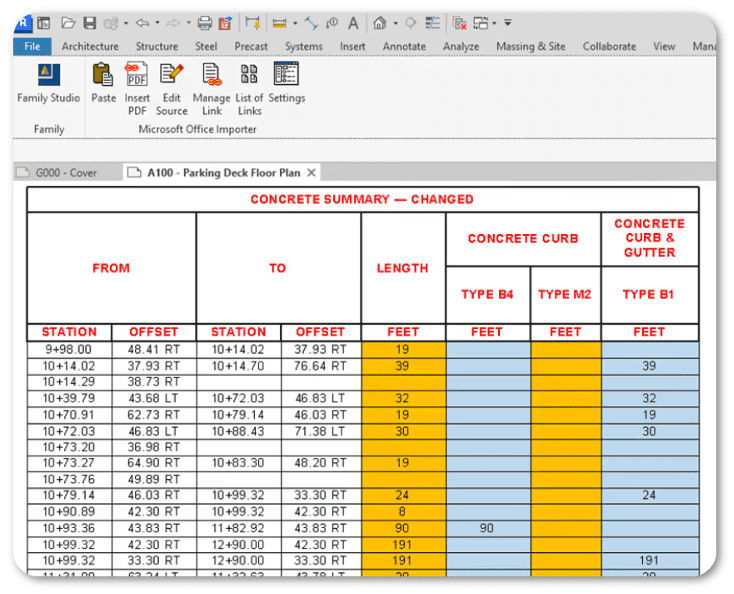
Excel imports that look just like the original spreadsheet? Yup.
1. Flawless Formatting and Visual Conformity
- Respects the Source: Microsoft Office Importer flawlessly imports complex formatting, merged cells, font styles and cell colors, exactly as displayed in the original Excel and Word data, directly into a Revit drafting view. For you, this means that the hours spent fighting the formatting are eliminated and the risk of a formatting error — a random typo or a missed cell edit — is zero.
- Sheet-Level Control: It solves the constant problem of fitting large schedules into a project sheet. It intelligently and automatically splits the imported data into multiple columns that can be placed across one or more drawing sheets — with optionally repeating headers for clarity — giving the user unprecedented control over the final presentation.
2. Live Links: Eliminating Version Conflict
This is a much-loved feature with existing users. Instead of a one-time copy, the import establishes a live link to the original source file.
- Instant Verification: When the source Excel file (such as a master equipment list) is updated by the project team, the associated document within the Revit project is immediately updated, literally with a single click.
- On-Point Accuracy: This process entirely eliminates one of the most dangerous data flaws: the version conflict. You no longer risk submitting a project with any outdated Excel or Word data. There’s no concern, for example, that you accidentally sent out a six-month-old material specification or an incomplete parts list. The potential for human error during formatting is removed, and, with auto updates, the integrity of the data imported into the project is guaranteed.
3. Boosting Efficiency: Minutes Add Up to ROI
The cost-benefit analysis of this solution is measured in hours of saved billable time:
| Manual Workflow Pain Point | Microsoft Office Importer Solution | Time/Risk Savings |
| Pasting Excel and Word data requires manual formatting. | Instant, beautifully formatted import. | Hours of document clean-up per sheet set is saved. |
| Export to PDF/DWG and link as a static image. | Data is linked to source file for auto updates. | Saves time by eliminating all revision-related re-imports and re-formatting. |
| Manually splitting large schedules to fit inside borders. | Automatic column wrapping within your borders, with optional repeating headers. | Eliminates manual cutting and pasting of spreadsheets or documents for instant time-savings. |
| Risk of submitting outdated or inaccurate data. | Tool automatically updates imported information. | Zero version conflict risk. |
4. The Timesaving PDF Party
Remember that one-page-at-a-time PDF problem we mentioned earlier? Wave it goodbye — unless you genuinely prefer doing it that way. Now you can bring in the entire PDF all at once or specify a page range. Either way, it’s push-button simple and done in a simple click or two.
The Final Word
The journey to data-driven design in Revit is only as strong as its weakest link. By improving the quality and accuracy of Excel and Word imports into Revit, you neutralize a persistent threat to your documentation — the accidental, costly (and potentially catastrophic) errors that occur during manual formatting — so you can now present a project where the flawlessly formatted data is as powerful and accurate as it was always meant to be.

Excuse the pun, but Excel excellence is easy with the right tool at your fingertips.
