
CAD/BIM Tips & Tricks
The MicroStation File Fixer: The Smartest Way to Rescue Your DGN Files (Without Losing Your Mind)
18 May 2026
Let’s be honest. There are few things in the MicroStation® world more frustrating than a file that simply refuses to behave.
You open a DGN expecting to see your drawing … and instead, you get:
- A file that crashes or produces an error message.
- Missing or inconsistent elements.
- Geometry that won’t respond to commands the way it should.
- Or worse, a DGN file that won’t open at all.
Want the go-to solution for designers who’d rather spend their time designing than debugging?
At that point, you’re not designing anymore. You’re troubleshooting. And that’s exactly where the file fixer for MicroStation becomes your new work wingman.
In this article, we’ll explore what the MicroStation file fixer is, why you might need it, and why this tool is the gold-standard solution for designers who’d rather spend their time designing than debugging. If you’d prefer to design without the drama, read on.
What Is the MicroStation File Fixer?
The MicroStation file fixer is a specialized tool designed to detect, diagnose and repair problems in DGN files, especially those that standard MicroStation tools can’t resolve.

MicroStation includes built-in utilities for auditing, compressing and cleaning files. These are useful, but they’re designed for maintenance, not recovery.
When a file becomes structurally inconsistent or partially corrupted, those tools often can’t fix the underlying problem.
That’s where the dedicated MicroStation file fixer comes in.
The Underlying Causes: Why MicroStation Files Break
Before we talk solutions, let’s understand the enemy.
MicroStation file problems aren’t rare. Most users run into them at some point, often during completely normal workflows.
Common causes include:
- Software crashes during save operations.
- Network interruptions.
- Forced shutdowns or system instability.
- Inconsistent or broken reference relationships.
- Version conversions.
If you’d prefer to design without the drama …
When something goes wrong internally, the symptoms show up quickly:
- Files won’t open or throw errors.
- The file opens … then crashes.
- Elements display incorrectly or inconsistently.
- Commands fail without explanation.
- Geometry can’t be selected or modified.
- “Tool not allowed” messages (MicroStation’s version of a check engine light).
In short, the file just doesn’t behave the way it should.
A Quick Note on “Tool not allowed” Errors
The classic “Tool not allowed” message is a real and common MicroStation warning that essentially means, “You’re trying to do something, but something in the file or environment is preventing it.”
Most of the time, it’s caused by permissions, misbehaving elements, reference or configuration issues, not corruption itself. Think of it as a symptom, not a diagnosis.
Not Everything Is Corruption (Even If It Feels Like It)

Say no to the rage.
To make things more confusing, similar symptoms can come from:
- Workspace or configuration conflicts.
- DGN cache issues.
- Reference display problems.
This means you can spend a lot of time troubleshooting … without actually fixing the problem.
Enter the Rescue Team: Axiom’s FileFixer
If you’ve ever wished your DGN file would just fix itself, you’re in luck. And if you’ve ever seen the movie, Highlander, you know that there can be only one …
Axiom’s FileFixer™ is the purpose-built MicroStation file fixer designed to automatically repair corrupt or misbehaving files in a quick and easy way.
No guesswork. No endless troubleshooting. Just a fast way to get your file back under control … because who needs added complexity when you’re already file-fighting?
What Makes FileFixer a Necessity?
When you’re dealing with a misbehaving file, you want the tool that can whip that file into shape, fast. FileFixer does just that … and does it intelligently.
1. Fully Automated, Low-Friction Repair
FileFixer is designed to be easy to use, even for complex issues. That means:
- No complex setup.
- No guesswork.
- No “try this, now try that” troubleshooting.
Just run it and get back to work.
Just run it and get back to work.
2. Fixes Problems Native Tools Can’t
Some issues are simply beyond MicroStation’s native capabilities. FileFixer steps in where the platform stops. It can detect and repair:
- Corrupted or hidden level data.
- Structural inconsistencies within the file.
- Elements or data that behave unpredictably.
In short, it tackles the kinds of problems that don’t have obvious fixes, which means you don’t have to spend time on it. Often, it requires no more than typing in (or double-clicking on) the name of the damaged file.
3. Deep Structural Repair
Instead of, “Well, there goes my afternoon,” you get, “Fixed. Next?”
When MicroStation files are damaged, parts of the file can become inaccessible or behave incorrectly. FileFixer can:
- Repair corrupted files.
- Recover accessible data.
- Give you a way to control virtually every aspect of the repair process.
It’s less about “patching” and more about restoring the file to a usable state.
4. Batch Processing (Because It’s Never Just One File)
If you’ve got dozens (or hundreds) of problematic files, FileFixer can process them in batches.
Instead of, “Well, there goes my afternoon,” you get, “Fixed. Next?”
5. Fast Results That Keep Projects Moving
Time is money, especially in CAD environments. File corruption can:
- Delay deliverables.
- Disrupt workflows.
- Frustrate teams.
FileFixer is designed to resolve these problems quickly so your project stays on track.
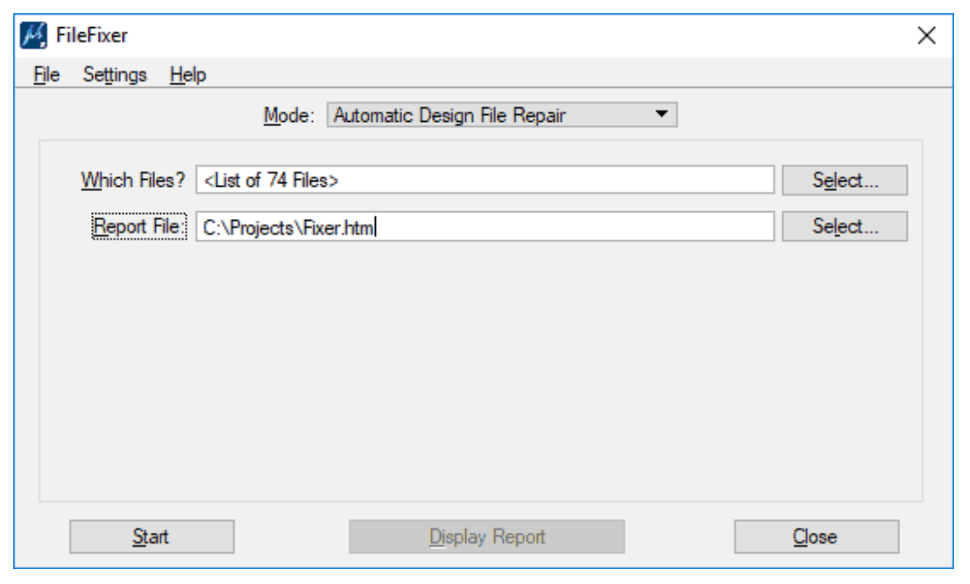
Say yes to clarity and simplicity: the hallmarks of a great tool.
Real-World Use Cases
Let’s take this down to a completely practical level. Here are a few scenarios where FileFixer becomes essential.
Scenario 1: The File That Won’t Open
You double-click your file. Nothing happens or you get an error message.
FileFixer can often recover and repair files that MicroStation struggles to open.
FileFixer can recover and repair files that MicroStation struggles to open.
Scenario 2: The “Haunted” Drawing
Elements disappear, levels behave oddly and nothing seems consistent.
FileFixer identifies and fixes hidden corruption, restoring sanity to your model.
Scenario 3: Elements You Can’t Modify
You try to edit and … nothing happens.
FileFixer detects and resolves underlying issues that interfere with normal file operation.
Scenario 4: Project Bottlenecks
One bad file holds up an entire workflow as panic and desperation set in.
FileFixer removes the bottleneck, fast, so that work can continue.
Why MicroStation FileFixer Matters
You might be thinking, “Can’t I just fix this manually?” Sometimes … maybe. But realistically?
- It’s time-consuming.
- It requires deep technical knowledge.
- It doesn’t always fully resolve the problem.
FileFixer eliminates:
- Trial-and-error troubleshooting.
- Hours of lost productivity.
- The risk of making things worse.
And let’s face it, you’re a designer, not a debugger, right?
The Bigger Picture: Productivity and Peace of Mind
Axiom’s tools are built with a simple philosophy in mind: Remove friction from CAD and BIM workflows.
All our MicroStation solutions (including FileFixer) are designed to:
- Automate tedious tasks.
- Solve persistent technical problems.
- Improve overall efficiency.
The result is fewer interruptions, smoother workflows and more progress on actual design work.

Don’t you love it when there’s nothing to fix?
The Value of FileFixer
If you work with MicroStation regularly, the value quickly becomes clear. Consider the cost of:
- Lost time.
- Delayed deliverables.
- Rework
- Frustration (which is, admittedly, harder to quantify, but still very real).
Now compare that to a tool that:
- Repairs files efficiently.
- Handles issues that are difficult to diagnose manually.
- Helps keep projects on track.
It’s not just a tool. It’s a safeguard for your workflow.
Final Thoughts: Stop Fighting Your Files
A problematic MicroStation file can feel like a dead end, but it doesn’t have to be. With FileFixer, you can:
- Recover damaged files.
- Restore normal file behavior.
- Keep projects moving forward.
Suddenly, you’re not just patching problems, you’re solving them at the source.
So, the next time a DGN file decides to act out and rebel, you’ll know exactly what to do. (Hint: It involves a lot less frustration … and maybe even a little smug satisfaction.)
