

CAD/BIM Tips & Tricks
The MicroStation Problem-Solver’s Playbook
And Why Your Sanity Depends on It
19 January 2026
If you’ve ever felt like you (or your team) are armed with nothing but caffeine, frustration and the desperate knowledge that heads will roll if someone doesn’t fix those 359 title blocks before five this evening, this playbook allows you to ditch the caffeine and chaos and win the workflow war with strategic flair.
I. Introduction — The CAD/BIM Manager’s Reality Check
The Problem: The Job They Didn’t Hire You For
Chances are that you got into this gig because you love design, precision and turning a blank sheet into a buildable reality. Yet, if you look at your day, how much of it is truly spent on creative tasks or thoughtful design review?
Instead, have you somehow become an impromptu MicroStation® support specialist, a standards cop, an emergency file surgeon and sometimes, a therapist for frustrated designers? Are you the last line of defense against the chaos of deadlines? Are you the one supporting distributed teams working on the same project? Are you the one coming up with solutions to other people’s problems?

This tightrope performance is a potential recipe for madness, yet the client only cares about the perfect deliverable that drops into their inbox on time.
The key strategy is shifting your approach from manual reaction (defense) to automated prevention and repair (offense).
The core pressures? How to maintain standards and meet deadlines when 80% of your time is spent cleaning up someone else’s mess. You’re not paid to band-aid injured files. You’re paid to produce accurate drawings. So, how can you (and your team) spend less time on the chaos and more time doing what you originally chose to do: design?
The Play: Defining the Problem-Solver’s Toolkit
If you’ve spent some time in this industry, you know the solution isn’t becoming faster at manual cleanup. That’s a race where nobody really wins. The key strategy is shifting your approach from manual reaction (defense) to automated prevention and repair (offense).
The tools in MicroStation Productivity Toolkit aren’t just frivolous add-ons. They’re high-ROI automation artillery, designed to attack the soul-crushing, repetitive tasks that bleed your team’s time and energy, creating chaos and liability.
This playbook is your guide to solving common MicroStation issues before they cost the firm time, money and sanity. It’s the difference between endlessly fighting fires and installing a strategic sprinkler system.
II. Standards — Building the Unbreakable CAD Stronghold
The Problem: The Standards Drift Phenomenon
Ah, Standards Drift. It starts subtly. A junior designer needs a special hatch pattern for a one-off situation. They name a new layer HATCH_TEMP_V2_FINAL. Then another designer decides the company standard text size is just a bit too small, so they override the style, just for this sheet. Before you know it, you’ve opened a file where the layers look like a bowl of alphabet soup, the text elements are all over the place and your cell libraries resemble a digital junk drawer.
Do your cell libraries resemble a digital junk drawer?
If you’ve ever had a project with five different element weights all trying to represent the same dashed line, you know the pain of Standards Drift. It’s like a violation of the Geneva Conventions of CAD.
The Play: Setting Up Automated Standards Enforcement
Stop checking standards manually! You have a project to run, not a design audit to conduct. The only way to win this battle is to automate the standards enforcement.
Play 1. The Standards Enforcer (SpecChecker)
You can write a beautiful CAD standard document, but it’s worthless if it’s not enforced. SpecChecker™ is your digital CAD cop. It allows you to define your rules (levels, colors, line weights, text fonts) and then run a check against your entire project set.
The beauty? It doesn’t just report the violations — it can be set to correct many of them automatically. You’ll stop fielding complaints like “Why are all these lines printing light?” and start fielding compliments like “How are our deliverables always so perfect?”
Play 2. The Manager and Distributor (SpecManager)
Running this tool is like giving your files a massive shot of adrenaline.
Enforcement is one thing. Consistency is another. SpecManager™ allows you to enforce CAD standards as you work. This means that every team, every office and every sub-consultant can be working from the same rulebook — the same spec file — ensuring consistency across your entire organization. It’s the infrastructure that makes global standards possible.
Play 3. Taming the Cell Library Beast (CellManager)
Cell libraries are notorious for becoming bloated and messy. CellManager™ lets you get your libraries organized and batch-modify cell properties (color, style, weight, level), ensuring every cell library is clean and consistent. No more hours spent opening individual cells to change a line weight property that was updated in the company spec ages ago. The time savings here are huge and the impact on drawing quality is immediate.
III. Data Integrity — The Cleanup Crew and Quality Control
The Problem: The Hidden File Bloat
File bloat is a silent killer. Have you ever tried to zoom in on a file and MicroStation just crawls? Does the plot look ugly, with dense black areas? This is often caused by duplicate elements piled on top of each other. This doubles the size of your file and dramatically slows down performance.
The Play: The Digital Housekeeper (Duplicate Element Remover)
The manual cleanup for this is virtually impossible on large projects. Duplicate Element Remover™ is your solution. It automatically purges duplicate or near-duplicate graphical elements across your design files. Running this tool is like giving your files a massive shot of adrenaline — performance improves instantly and your plots look crisp because the line work isn’t stacking up.

Finding duplicate elements can take forever, or a couple of minutes. The difference? The right tool.
The Problem: The Version Control Nightmare
We’ve all been here. You receive a revised DGN from a subcontractor. They swear they only changed three things. You need to integrate the DGN into the project, but you’re terrified they accidentally moved or deleted something. How do you know exactly what they changed — before you integrate it?
The Play: The Digital Difference Tool (DgnCompare)
You don’t need to manually overlay and eyeball two files while desperately chugging coffee to stay awake. DgnCompare™ is your best friend for change management and liability control. It quickly identifies and reports on the differences between two DGN files. It’s an indispensable QA tool that visually highlights what was added, deleted or modified, giving you an audit trail that can save your bacon when disputes arise.
IV. The Multi-Platform Workflow — Playing Nice in the Sandbox
The Problem: The MicroStation Imports and Translation Trial
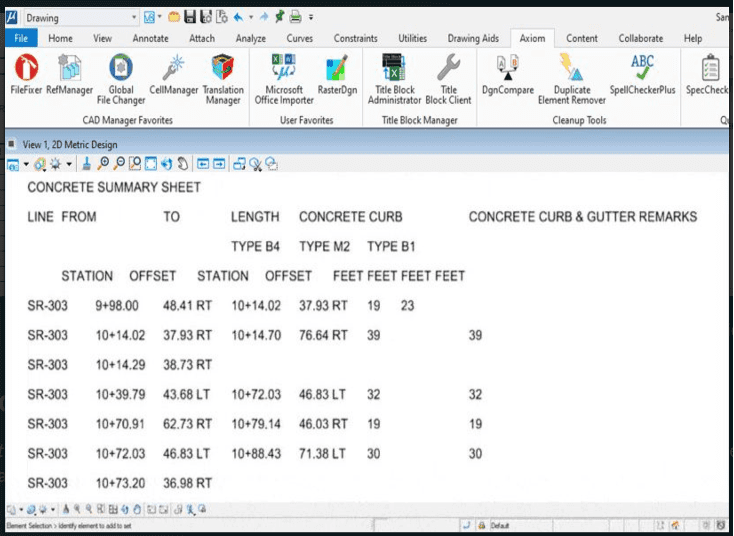
Sure, the information is there, but it’s not easy to follow.
You have several Excel spreadsheets to import into your project, and, luckily, bringing them in is easy enough in MicroStation. The formatting, however, is another matter entirely. You know you’ve got a 50% chance of losing, but you’re playing “Rock, Paper, Scissors” anyway to see who’s getting stuck with this mind-numbingly repetitive task — that also happens to be highly error-prone.
How about this fan-favorite? A common request: “We need the final deliverable in AutoCAD® DWG format.” This simple instruction is enough to cause cold sweats. Why? Because the MicroStation-to-AutoCAD translator is often a digital game of “Telephone” where the message gets garbled fast. Plot styles shatter, layers go rogue and your beautiful DGN becomes a messy, inaccurate DWG.
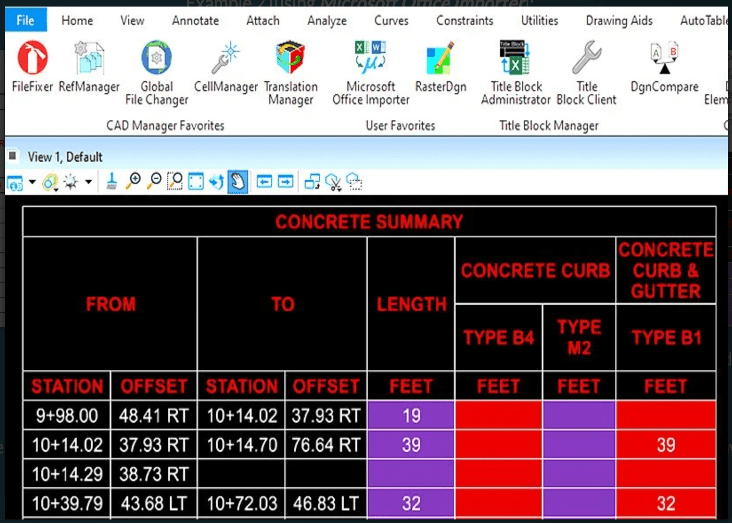
The clarity and customization you get with Microsoft Office Importer.
The Play: Strategies for Seamless Interoperability
Play 1. The Linked Data Lifesaver (Microsoft Office Importer)
If you’ve ever spent ungodly hours manually reformatting an Excel spreadsheet imported into MicroStation and thought to yourself, “This is the hill upon which I refuse to die,” we’ve got you. Pasting an Excel spreadsheet into a CAD file creates a situation where the moment the source spreadsheet changes, your import is outdated and you get to do it all over again.
The solution is Microsoft Office Importer™. It flawlessly imports and links Excel spreadsheets and Word documents into your DGN as intelligent objects. When the source document changes, your drawing automatically updates. It keeps data consistent, eliminates manual updates and is handy for establishing a Single Source of Truth strategy for your tables and schedules.
Play 2. Translations Special Ops (Translation Manager)
Using a dedicated tool like Translation Manager is the only reliable way to protect data integrity during export. It gives you far more control over the translation process than native commands, ensuring your attributes, reference settings and symbology survive the trip from DGN to DWG (and vice versa) without becoming a disaster zone.
It’s like the final safety net that can help prevent embarrassing project loss.
- Precision Mapping: Translation Manager allows you to create mapping templates for levels, fonts and line styles. You set the rules once and the tool ensures every element lands exactly where it belongs in the DWG, adhering to even the most pedantic client CAD standards.
- Data Integrity: Unlike native tools that often don’t handle complex problems well, Translation Manager deals with them easily, efficiently and on thousands of files at a time.
- Batch Processing: It turns a week-long manual conversion nightmare into a “set it and forget it” background process. When you’re delivering 500 sheets to a client who demands DWG format, this isn’t just a helper — it’s the engine that gets the project across the finish line.
V. Emergency Room CAD — Crisis Management for the Problem-Solver
The Problem: File Corruption, Missing References and Global Changes
If you’re a CAD Manager, you probably have a rotating cast of disasters. Some days, the office feels like a busy Friday night at the emergency room. Let’s focus on the classic triple threat that can ruin your week:
- The Sick DGN. Elements misbehaving? Error messages? Or a key project file that refuses to open? And the deadline is in four hours.
- The Missing References. The IT guy renamed the server or someone moved a critical file. Now, dozens of DGNs are displaying those annoying red boxes, “helpfully” showing you where data should be, but isn’t. What do you do when your references go missing or get moved or renamed?
- The Global Bomb. It’s 4:45 PM on a Friday. The client calls. “The project number changed, so you need to update that information before you submit.” Great. There are 359 title blocks. Suddenly, you need to switch from being a CAD designer or manager to being a surgeon. Forget that it’s Friday. Guess who’s not leaving the office anytime soon?
The Play: Practical Emergency Response Toolbox
Play 1. The Trauma Prevention Tool (FileFixer)
This is the emergency trauma kit. When you get a dreaded error message or find that a DGN file won’t open, FileFixer™ can recover it in minutes. It’s the same for misbehaving elements, elements that don’t plot the same way they appear on your screen, DGN files that convert incorrectly to other file types, elements you can’t select or delete, elements that are not on a defined level and models that are unable to be selected.
This single tool is often worth the price of admission to this suite of tools when it saves you from re-drawing a critical project file. It’s like the final safety net that eradicates file corruption to help prevent embarrassing project loss.
Play 2. The Reference File Shepherd (RefManager)
Missing references are infuriating, but manually reattaching them across a huge project is a time-suck. RefManager™ provides automated diagnosis and correction for missing reference files across hundreds of drawings. Instead of searching, you just tell it where the files are now located and it updates the links everywhere, saving you an entire day of hunting and clicking.
Turn a weekend of emergency overtime into a ten-minute job.
But what if you don’t know that a reference file is missing? RefManager can tell you. And what if you need to change settings in multiple references or locate references that have been moved, renamed or deleted? Or clone and replace reference files in multiple projects? Attach a reference file to hundreds of design files or adjust symbology with a single command? You guessed it. RefManager.
Play 3. The Global Painkillers (Global File Changer and Title Block Manager)
That 4:45 PM title block change? You can’t hire enough temps to make those manual changes fast enough. Global File Changer™ and Title Block Manager™ are your automation artillery.
Global File Changer makes large-scale edits in DGN files. For example, anything MicroStation users can do with key-in commands can be done in batch (and therefore much faster) with Global File Changer. It can perform text search-and-replace, update file settings, convert between 2D and 3D or replace cells while preserving tag data — powering through hundreds or thousands of files at once.
Title Block Manager takes the grind out of updating title block information in MicroStation files. Batch-edit multiple design files from a single Excel® spreadsheet — whether you’re renumbering sheets or updating project details. The result: consistency, accuracy and zero wasted time.
With these two titans, you’ll turn a weekend of emergency overtime into a ten-minute job.
Play 4. The Merge Master (RefMerge)
Become the “Chuck Norris of MicroStation” — reliable, fast and always able to solve the problem.
When you need to send out a single, clean file for final submission, archiving or plotting, manually merging all those references is tedious. RefMerge™ automates the process of merging reference files into the master DGN, cleaning up settings and ensuring you have one final, high-quality, self-contained product without hours of manual clean-up.
VI. Justifying the Investment: The ROI of Automation
The Problem: The True Cost of Tedium
The biggest challenge facing a CAD/BIM manager is justifying software investment to a CFO who only sees the license cost. We need to calculate the True Cost of Tedium.
Let’s assume your team collectively spends 20 hours a week on cleanup: fixing corrupt files, dealing with bad translations, manual title block updates and standards checking. That’s 1,040 hours a year. At an average rate of $50/hour, that’s around $52,000 in lost productivity — pure overhead spent fighting the details, not designing.
This is the financial reality you need to present to the higher-ups.
The Play: Justifying Investment to the Purchaser (The Dollars and Sense)
Play 1. Quantifying the Time Saved
Don’t talk about features. Talk about hours. You can say things such as,
- “Microsoft Office Importer could realistically save us hundreds of hours per project.”
- “Global File Changer can turn a ten-hour title block revision into a 15-minute process.”
- “RefMerge could save us at least four hours per major deliverable by eliminating manual file consolidation.”

Department heads and Procurement staff may know nothing of spreadsheet imports, title block revisions or file consolidations, but they do understand that time is money. You’ll be speaking their language.
Play 2. Mitigating Risk
This is the big one. The cost of a corrupt file or a failed deliverable is not $50/hour. It’s client dissatisfaction, project delays and potential liability. The tools in MicroStation Productivity Toolkit are like insurance policies against the risks you face daily. They help protect the firm’s reputation and its most valuable asset: the project data.

Play 3. The Peace-of-Mind Factor
Ultimately, you aren’t just buying software. You’re buying the firm’s ability to be the “Chuck Norris of MicroStation” — reliable, fast and always able to solve the problem. Your team gets to focus on design and you get to manage, not troubleshoot. That, alone, is priceless.
The End Zone
MicroStation Productivity Toolkit is a comprehensive suite of 12 tools specifically designed and purpose-built to overcome the problems that MicroStation users face daily. Not only is it a speed and accuracy booster, it also saves the firm a ton of time and money. Here’s what one happy user said:
“We are working on building one of the largest refineries in Saudi Arabia. Axiom’s productivity tools in Toolkit have saved us upwards of more than a million dollars in overall costs for just this one project. And your Tech Support is always outstanding.” — K.S, Rolta Int Inc/KBR Inc.
Go tell it to the man.
