

CAD/BIM Tips & Tricks
Why Does BricsCAD Hate My Excel Table?
A Guide to Flawless Excel & Word Imports
17 February 2026
If you’ve ever tried dropping an Excel spreadsheet or a Word doc into BricsCAD and ended up staring at a mangled mess, thinking, “Why is this horror show now part of my DWG?” you’re not alone. There’s practically a support group for this on the BricsCAD forums. And yes, we’ve all been there.
Before we stroll into solutions, let’s unpack the problems most users complain about, with a touch of empathy and a hint of humor (because if we don’t laugh, we’ll cry right into our keyboards, which is never helpful).
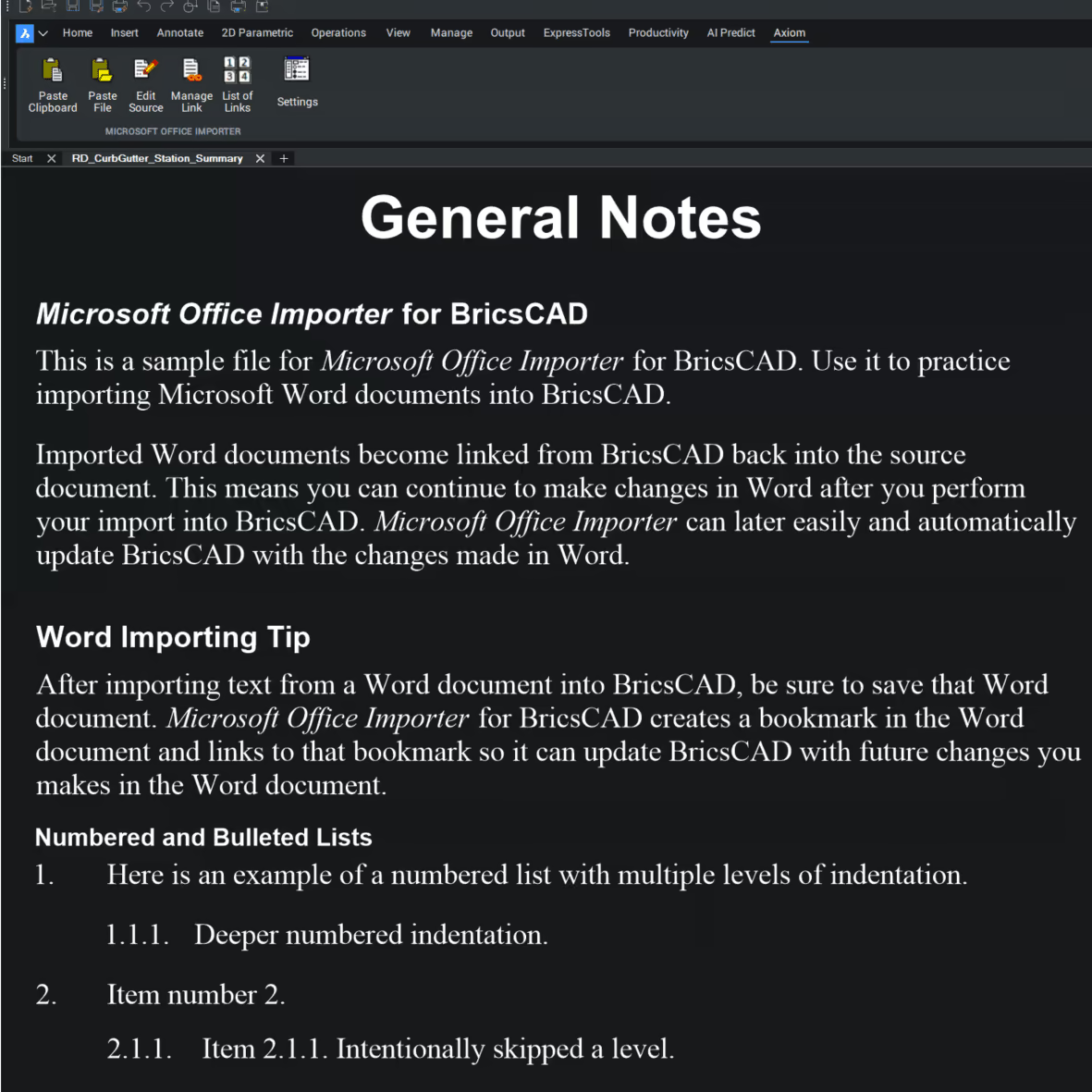
Ever seen Word imports look this good in BricsCAD?
The Common Killers of Formatting
1. Tables That Refuse to Behave
BricsCAD lets you paste spreadsheets via Paste Special (choosing XML Spreadsheet) or bring them in as OLE objects, but neither gives satisfying results. Users report:
- Tables that won’t let you shrink cell size or preserve merged cells.
- Imported content that reverts to “standard” sizing no matter what you do.
It’s like trying to teach an old robot new tricks, armed without so much as a USB-C port. Tricky.
Trying to use native BricsCAD to import stuff
is like trying to teach an old robot new tricks.
2. Crashing and Slow Editing
Some swear that once your spreadsheet is in, editing it (especially when it’s an embedded Excel sheet) can make BricsCAD sluggish or even crash. “Spinny wheels of doom,” as one poster described it.
If your workflow hits pause every time you try to adjust a cell, you’re not hallucinating. It’s a real pain point.
3. OLE Objects: Black Boxes and Plotting Nightmares
Copy/pasting directly from Excel often creates an OLE object. That’s cute in theory, but in practice:
- Printing to PDF sometimes turns OLE tables into giant black rectangles.
- Fonts, sizes and layout can get lost in translation.
- It’s basically a Frankenstein object that works only when it feels like it.
The consensus in the forums? OLEs are best avoided unless, for some reason, you really need an OLE.

4. Word Imports? What Are Those, Exactly?
BricsCAD’s native tools don’t handle Word tables and text gracefully. Copy/Paste can introduce strange fonts or wrong characters (especially arrows and symbols) and there’s no native “import Word doc as CAD text” button.
Yes, this is 2026. Yes, there should be a better way.
Why Does This Happen?
At its core, BricsCAD’s native import treats data in one of two ways:
Even with the help of “Paste Special”, native BricsCAD still won’t preserve the formatting the way you’d reasonably expect.
- OLE embedding, which wraps Excel or Word objects as containers, not native CAD entities.
- Table entities via XML/CSV, which import data, but lose a lot of the original formatting because BricsCAD table styles don’t yet perfectly mirror Excel or Word layout features.
So, you end up with a kind of functional table, yes, but not one that looks like your source and definitely not one that “just works” with your drawing’s aesthetics.
Workarounds That Sort Of Help
1. Use Paste Special Wisely
Instead of a plain Ctrl-V, use PASTESPEC → XML Spreadsheet. This brings in table entities that BricsCAD may manage and might avoid some OLE pitfalls.
Downside: It still won’t preserve all the formatting the way you’d reasonably expect.
2. Export CSV, Then Import
Some folks export to a CSV or XML file and then use the BricsCAD TABLE command to import that.
Bonus: Better control over native table properties.
Limitation: Lost fonts, merged cells, colors and so forth. Basically, it’s a compromise.
3. Set Up Table Styles First
Define a table style in BricsCAD that matches your project standard (text height, gridlines, fonts), then import. It’s not automatic, but it helps.

Imports lacking grace and style? There’s a solution for that!
The overall takeaway from these three options is that you can eventually sort-of-kind-of get there, but it’s going to take time and a lot of futzing around for less-than-stellar results. So, what’s the point? Why bother?
What If You Want a Better Way?
This plugin is designed to cut through all the friction!
Here’s where Microsoft Office Importer™ for BricsCAD can be a game-changer. This plugin is designed to cut through all the friction above!
What It Actually Solves
- Keeps original formatting: Fonts, colors, sizes, merged cells and layout come in looking just like your spreadsheet or Word doc.
- Links and syncs your imports: Automatically updates your import when source files change.
- Handles huge sheets: Splits oversized tables into multiple columns with repeated headers so nothing gets cut off or is difficult to read.
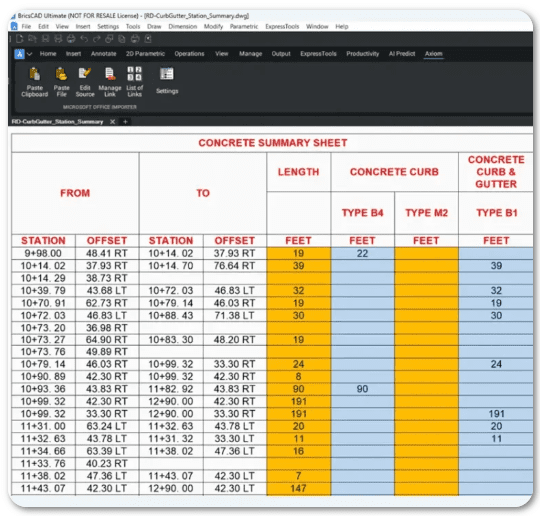
What more could you want?
- Saves hours of manual cleanup: Not an exaggeration. Many users report huge time savings.
In other words, it finally feels the way importing Excel and Word data should in 2026: Easy and reliable.
Final Thoughts: It’s Not You
Because let’s face it: You signed up to be a CAD pro, not a freaking formatting specialist.
Frustration with BricsCAD’s native import feature isn’t about user error. It’s about BricsCAD doing battle with formats it wasn’t designed to handle natively. The result? Compromised tables, weird formatting wasted time and the “Oops!” of occasional crashes. But there is a way to work smarter if you want peace, joy and well-formatted imports every single time: Microsoft Office Importer.
Because let’s face it: You signed up to be a CAD pro, not a freaking formatting specialist.
