

CAD/BIM Tips & Tricks
Your DGN Inventory Can Look Right and Count Wrong
Where Single-Model Cleanup Stops Before Your Quantity Review Starts
16 October 2026
You’re about to hand off quantities from a MicroStation CAD drawing of a corridor project. The linework looks clean, but is it possible that the element inventory includes geometry you can’t see?
Suppose two line elements in “Corridor_Main.dgn” occupy precisely the same location. They’re the same type and have identical geometry, so the second line completely hides the first. Your screen shows one line, but a construction takeoff or automated quantity calculation may count two.
This isn’t a case of duplicate DGN files. It’s duplicate elements hiding inside a DGN.
MicroStation’s Design File Cleanup can find and remove duplicate elements within the active model. The limitation becomes apparent when the project extends beyond the active model. A clean result in one model of “Corridor_Main.dgn” tells you nothing about the elements inside another DGN until someone opens and checks that file too.
A design file can look clean while its inventory counts the same geometry twice.
Before the handoff, you need to know exactly which design files were examined, what criteria were used and what was found. The directory won’t volunteer that information, although it will happily volunteer another 200 design files.
A design file can look clean while its inventory counts the same geometry twice.
Why Duplicate Elements Can Hide in Plain Sight
Bentley defines duplicates as two elements of the same type that share the same location and geometry. Unless you have x-ray vision, staring harder at the view won’t necessarily reveal the extra element. The two elements sit directly on top of each other.
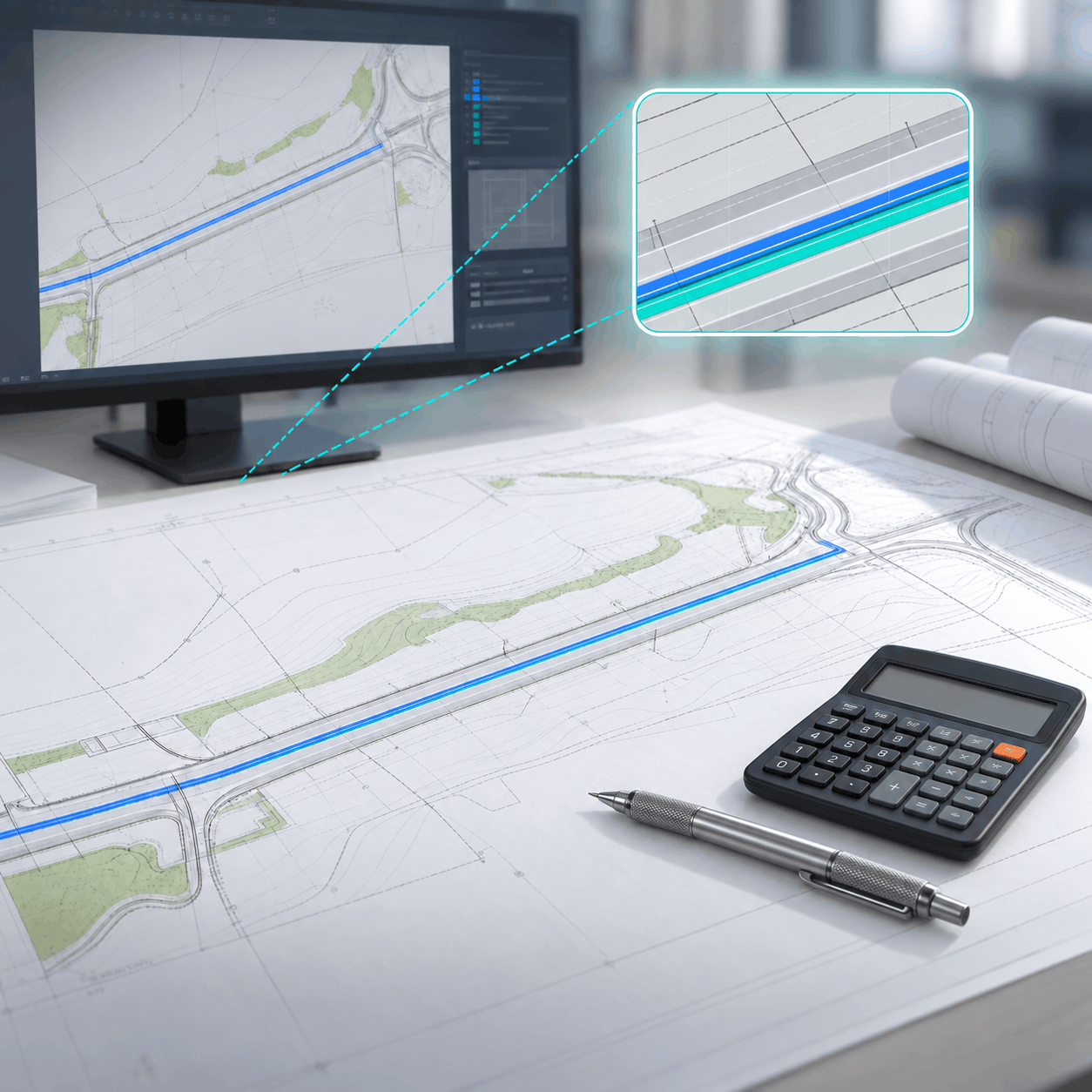
One visible line can conceal two countable elements.
Duplicate elements are different from overlaps, where elements partially cover one another, or gaps between endpoints. If you’re looking for coincident geometry, choose the duplicate search. An intersection or closely spaced line isn’t automatically a duplicate and shouldn’t be deleted as one.
Hidden duplicate elements can interfere with automated quantity calculations, but the exact effect depends on which elements the calculation counts. That’s why the affected quantity takeoff should be checked after cleanup instead of assuming every duplicate produces the same error.
The view can show the drawing beautifully, but it can’t sign off the underlying count.
Start With the Active Model
MicroStation’s Design File Cleanup is a useful native option when you know which DGN and model needs attention. It checks for duplicate elements inside the active model. Before deleting anything from a CAD file, it’s wise to work from a recoverable copy under your normal project controls.
Open Design File Cleanup and use the General tab to set Process View to the appropriate view. Then open the Duplicates tab and decide which element types belong in the search. Check the selected view carefully, especially if the model or sheet view normally used for review differs from the one currently active.
Set Action to Delete and select the relevant element types. Bentley’s optional Match attributes settings, such as color and line style, can narrow the search. Enable an attribute only when it must agree for two elements to qualify as duplicates.
That’s important because two otherwise identical elements on different levels may represent separate information. Level assignments aren’t always cosmetic, so decide how those differences should be treated before removing geometry. MicroStation will follow the settings you choose. It can’t decide what the design file was intended to contain.
MicroStation will follow the settings you choose. It can’t decide what the design file was intended to contain.
Click Apply. The number of results appears in the General tab’s # Found section and in MicroStation’s status bar. Record the criteria, examine what changed and compare the result with the recoverable copy.
You’ve now checked the active model for duplicate elements. You haven’t checked the other models in that design file or the rest of the project yet.
Where the Native Cleanup Stops
Bentley describes Design File Cleanup as a tool for identifying duplicate elements, overlaps and gaps in the active design file. The important word is active.
The command doesn’t scan every DGN in a project directory, or even every model in the active DGN. If the handoff contains another drawing, someone must open that DGN, activate each model in turn, confirm the settings, run the cleanup and inspect the result.
For a handful of known files, that may be perfectly manageable. As the set of design files grows, however, remembering which DGNs were opened and which settings were applied becomes part of the problem. “The project is clean” isn’t much of a claim unless you can identify the files that were actually checked.
The native tool’s boundary is the active model. The project’s boundary may be hundreds of DGN files.
What Else Can Duplicate Elements Affect?
Incorrect quantities aren’t the only possible symptom. Depending on the design file, duplicate elements may also contribute to:
- Slow plotting: Check whether plot performance improves after the unwanted elements are removed.
- Sluggish view updates: Inspect slow-refreshing DGNs to determine whether duplicate geometry is increasing the workload.
- Awkward element selection: If selecting what appears to be one element produces unexpected behavior, find out what occupies that location.
- Quantity discrepancies: Recalculate the affected takeoff after cleanup, then compare the result with the project’s counting rules.
A faster view doesn’t validate a quantity, just as a corrected takeoff in one DGN doesn’t prove that every design file was examined. File coverage and calculation accuracy still need separate checks.
A corrected takeoff in one DGN doesn’t prove that every design file was examined.
How to Check Multiple DGNs in One Run
Axiom’s Duplicate Element Remover™ for MicroStation is designed for work involving multiple DGN files rather than one active drawing. You can select the DGNs to process, including a set matching *.dgn, then check all those files for duplicate elements with one command.
The software isn’t looking for duplicate copies of entire DGN files. It processes the selected design files and searches the elements inside them.
Define the handoff scope first and inspect the selected file list carefully. A project directory may contain archived drawings, alternative designs or other DGNs that don’t belong in the review. A wildcard is efficient, but it isn’t psychic.
One command can check the DGN files you actually have to deliver.
You can also control how closely elements must match. Duplicate Element Remover finds duplicate and near-duplicate elements and lets you decide how to treat otherwise identical geometry that differs by level, color, line weight or line style. Those choices should reflect the project’s CAD standards and the purpose of the quantity review.
Once the files and matching criteria are settled, the selected DGN files can be processed as one set. This removes the repeated open-and-run cycle while leaving the important CAD decisions with the person who understands the project.
One command can check the DGN files you actually have to deliver.
Can You Prove Which DGN Files Were Checked?
A finished batch command isn’t the end of the review.
Duplicate Element Remover can create a graphical .drf report for each processed DGN. The report retains the original file’s name and displays the unwanted duplicate elements, giving you specific locations to inspect in the source file.
The software can also produce one text report for the complete job or separate reports for individual files. Use those results to check three things:
- File coverage: Compare the processed-file list with the DGN files included in the handoff. Investigate anything missing.
- Reported geometry: Open representative .drf reports and inspect the indicated locations, particularly when matching allowed differences in level, color, line weight or style.
- Quantity results: Rerun the affected calculations and have the responsible reviewer confirm that the totals reflect the intended project geometry.
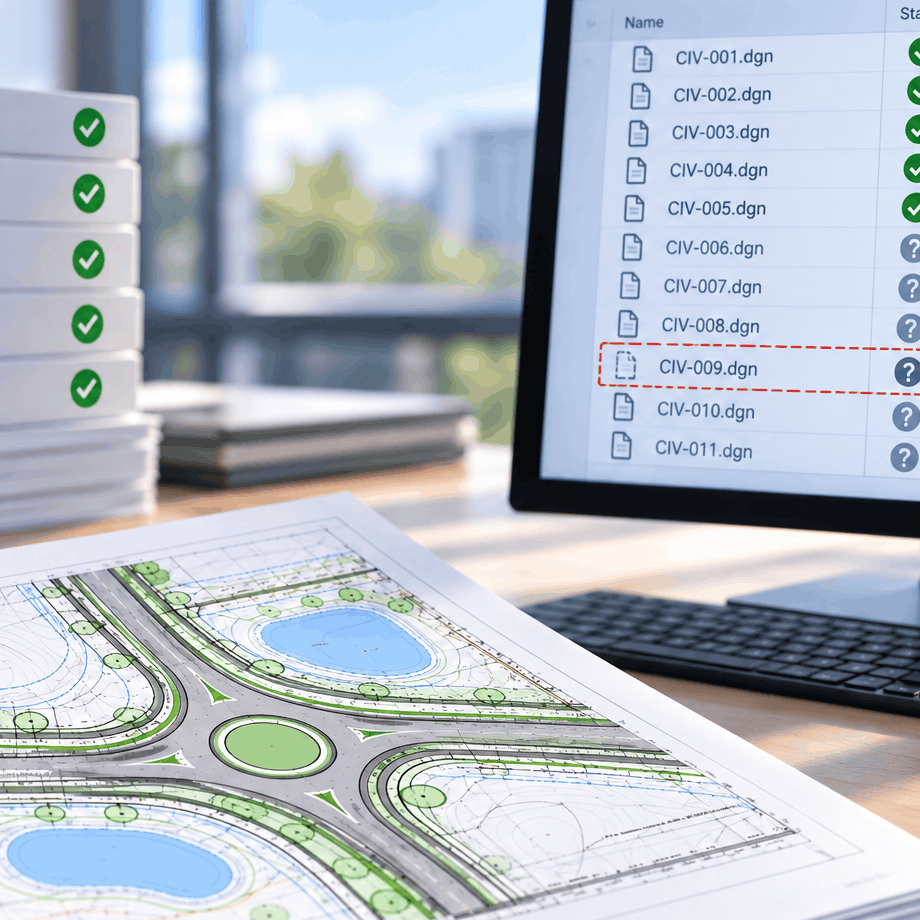
One checked drawing leaves the rest of the project unaccounted for.
Duplicate Element Remover supports MicroStation 2023, 2024, 2025 and 2026, CONNECT (V10) and V8/V8i, along with OpenRoads Designer, OpenBridge Designer and other MicroStation-based applications. Confirm compatibility with your production environment when planning the job.
Use the reports to inspect what the software found, then complete the design file review and quantity checks before the handoff.
Send the Handoff With a Checked Count
Before releasing the package, put the processed-file list beside the quantity review. You’ll have a record of which DGN files were checked, where duplicate elements were found and whether the affected calculations were verified.
The design files may look almost exactly as they did before. The difference is that the inventory behind them has been checked across the full set of DGN files.
Want help checking multiple DGN files for duplicate elements? Call a CAD/BIM Consultant at 727-442-7774 or chat with us at AxiomInt.com.
Axiom. CAD and BIM made easier.

Axiom's President
Oscar Albornoz
Feel free to share this article on your social media:
