
CAD/BIM Tips & Tricks
DGN File Gone Rogue? You Need an Automatic MicroStation File Fixer
27 April 2026
You know that particular sinking feeling when you double-click to open a DGN file, and instead of your drawing, you get an error message? Or worse, nothing at all? MicroStation® just sits there, apparently not giving a hoot about your deadline.
Or perhaps the file opens but something is obviously very wrong. And it’s the type of thing that would be difficult to recover from a backup or, even if you could, you might have to go back to an earlier version to get to one without the underlying cause that will keep happening as you try to move forward — a version that doesn’t have the ton of design work that you have done since then.
Welcome to file corruption. It’s like an unwanted party guest. Nobody invites it, but sooner or later, it shows up anyway. And ruins the party.
What Corruption Actually Looks Like
Here’s what makes file corruption genuinely frustrating: The symptoms aren’t always dramatic. Sometimes a file refuses to open and you know immediately something is wrong. Other times, it’s subtler: elements that go missing, levels that behave unpredictably, models that seem locked for no apparent reason or elements that display fine on screen but, annoyingly, print incorrectly.

One worth clarifying: “Tool not allowed” errors sometimes get lumped in with corruption symptoms, but they more often point to a file or model that’s been set to read-only — whether intentionally, through permissions, or a workspace configuration issue. It’s worth investigating before assuming corruption.
Similarly, erratic level and element behavior can sometimes trace back to DGN cache or workspace configuration conflicts rather than the file itself. The distinction matters because the fix is completely different.
None of this is to say corruption is rare, because it’s not, particularly in environments with heavy network file access or frequent MicroStation crashes. But sometimes, some of what looks like corruption has a simpler explanation.
Why Files Break (And Why It’s Rarely Your Fault)
File corruption in MicroStation isn’t some rare, exotic event. It happens to perfectly competent people.
Note: If you don’t care why it happens, skip to the next section for the solution.
File corruption in MicroStation isn’t some rare, exotic event. It happens in perfectly normal workflows, to perfectly competent people. A few of the real culprits:
- MicroStation crashes: MicroStation closing unexpectedly mid-save is probably the most common offender. When the software crashes while writing to a file, the internal structure can be left in an incomplete or inconsistent state, like a sentence that stops mid … you get the point.
- Network issues: Working off a network drive adds another layer of risk. A momentary network hiccup at exactly the wrong moment can interrupt a file write and introduce errors that aren’t always obvious right away. This one’s particularly sneaky because the file often appears fine … until it doesn’t.
- Outages: Power loss and system crashes round out the usual suspects, especially during operations that are heavy on file Input/Output.
- References: Reference file problems are worth separating out a bit. Broken paths and inconsistent settings between referenced files can destabilize a host DGN. And circular references (where File A references File B which references File A) cause their own category of misery (loading failures, unpredictable behavior), though they’re more of a configuration problem than true structural corruption.
- MicroStation versions: Version mismatches matter too. Moving files across major DGN format boundaries (the V7 to V8 jump being the classic example) can introduce structural inconsistencies that create problems downstream.
Enter FileFixer
Axiom’s FileFixer™ is built to handle what MicroStation’s native tools can’t. And the scope of what it addresses is genuinely broad: DGN files that won’t open, elements that misbehave, files that convert incorrectly to DWG, elements you can’t select or delete, elements sitting outside any defined level and models that can’t be selected at all.
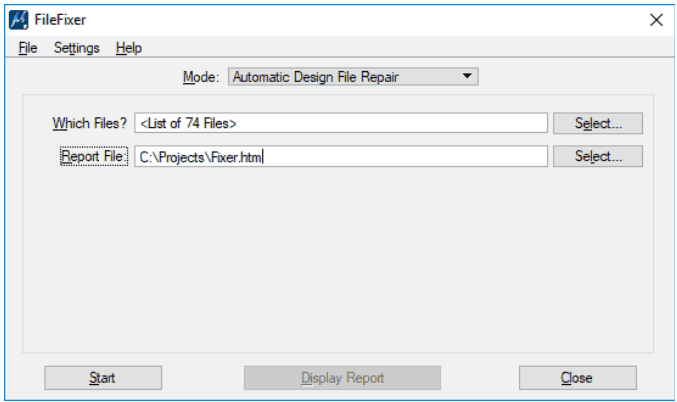
This is about as low-friction as file fixing gets.
Fixing a file typically requires a lot more than typing in or simply double-clicking the filename.
FileFixer’s defaults have been carefully tuned over years of real-world use, which means most files get repaired without you having to make a single decision. For situations where you need more control, that’s available too. You can dial into virtually every aspect of the repair process.
For CAD managers dealing with batches of incoming files from subcontractors, the batch processing capability is probably the most valuable feature. Instead of manually checking every file submission, you can run FileFixer across an entire folder at once. The beauty of it? You catch and fix problems before they become your problems.
Catch and fix problems before they become your problems.
It’s also worth understanding that some corruption hides. A file can appear to work fine while carrying internal damage that makes it prone to future corruption that will surface unexpectedly later in the project. Running FileFixer proactively, not just reactively, is a legitimate strategy.
What It Supports
FileFixer covers MicroStation V8 and V8i, CONNECT (V10), and MicroStation 2023, 2024 and 2025, along with verticals including OpenRoads Designer and OpenBridge Designer.
The Practical Case
The cost argument isn’t abstract. Consider a design file that took 200 hours to create. If that file (and its backups) carries hidden corruption that makes it troublesome or unusable, you’re not just losing the file. You’re losing all the work. Multiply that across a project with dozens of DGNs and the case for a dedicated repair tool makes itself.
File corruption doesn’t have to be a reputation-threatening emergency or a half-day caffeine-fueled debugging session. With FileFixer, it’s closer to a two-minute interlude. And that’s a trade most MicroStation users will take every time.
Want to see it in action? Request a free demo at AxiomInt.com or call us at 727-442-7774.
